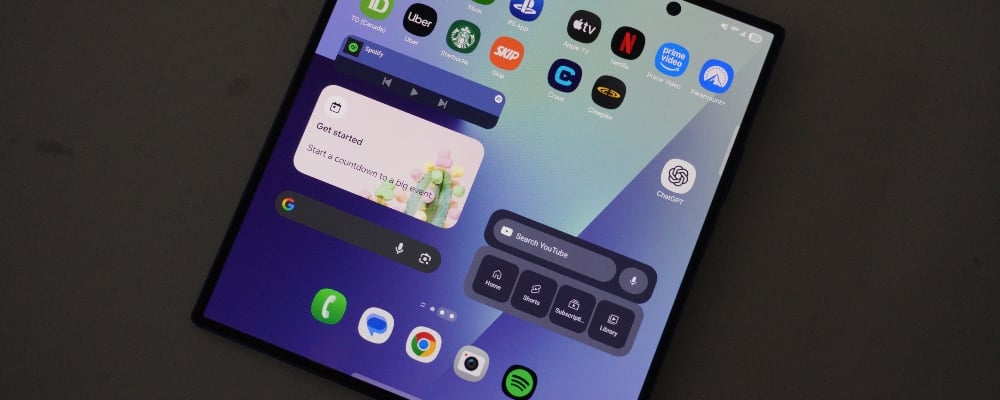
Widgets are truly one of the defining components of the Android ecosystem. Across all Android-powered devices, widgets enable you to customize your on-screen layout and experience. It's easy to set up a widget, providing quick access to features not usually on the home screen of your phone. It's even easier to resize them to your liking.
By default, most widgets give you a glanceable view of an app's core feature. Whether it's for the weather, your calendar, or smart home lights, adding a widget can save precious moments throughout the day. Plus, if you want to cut down on your phone use, you can quickly glance at your phone for info from widgets without the temptation to open apps and scroll.
Here's how you can add new widgets to your Samsung Galaxy, your Google Pixel or any other Android smartphone in a few easy steps.How to add widgets on Android
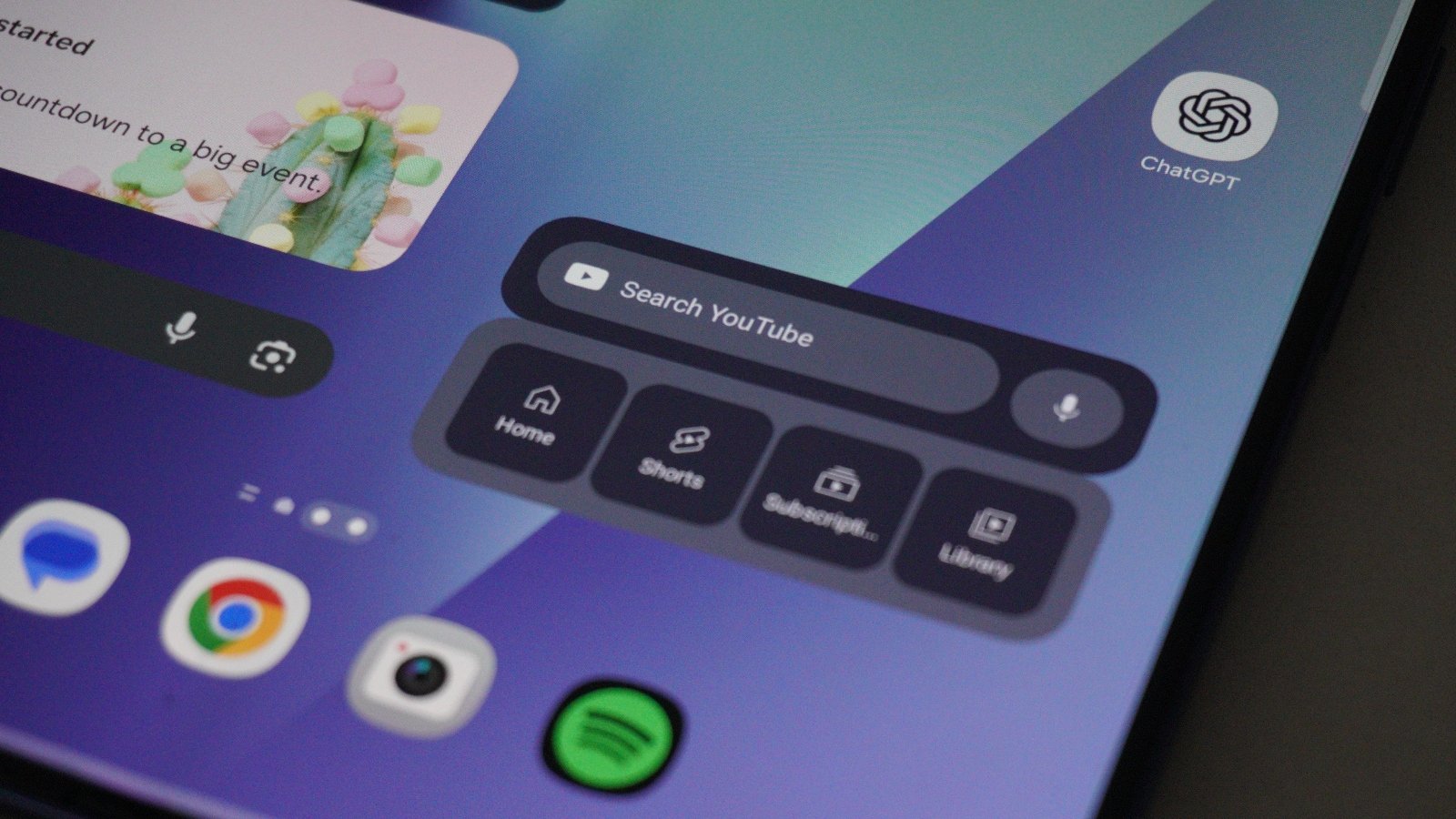
By adding widgets to your phone's home screen, you can get valuable information from some of your most-used apps without having to open each one.
Add widgets to your home screen
Follow these steps to add widgets to your home screen.
- Long-press on your home screen.
- Tap the Widgets option.
- Scroll through the available apps, supporting widgets.
- Browse the available app sizes (2x1, 2x2, etc.).
- Select the widget you want and press Add.
Each widget will have different functions and uses, so don’t hesitate to try them all out to see which ones you like and want to keep.
Add widgets to the lock screen
By adding widgets to your lock screen, you can find useful information without even having to unlock your device.
Adding widgets to your lock screen can be a fundamental time saver. The downside is that fewer widgets fit on your lock screen as opposed to your home screen.
To add widgets to your Android lock screen:
- Wake up your device.
- Long-press on your lock screen and select Add widgets.
- Scroll through the available apps, supporting widgets.
- Browse the available app type (1x1, 2x1, etc.).
- Select the widget you want and press Add.
How to edit widgets on Android
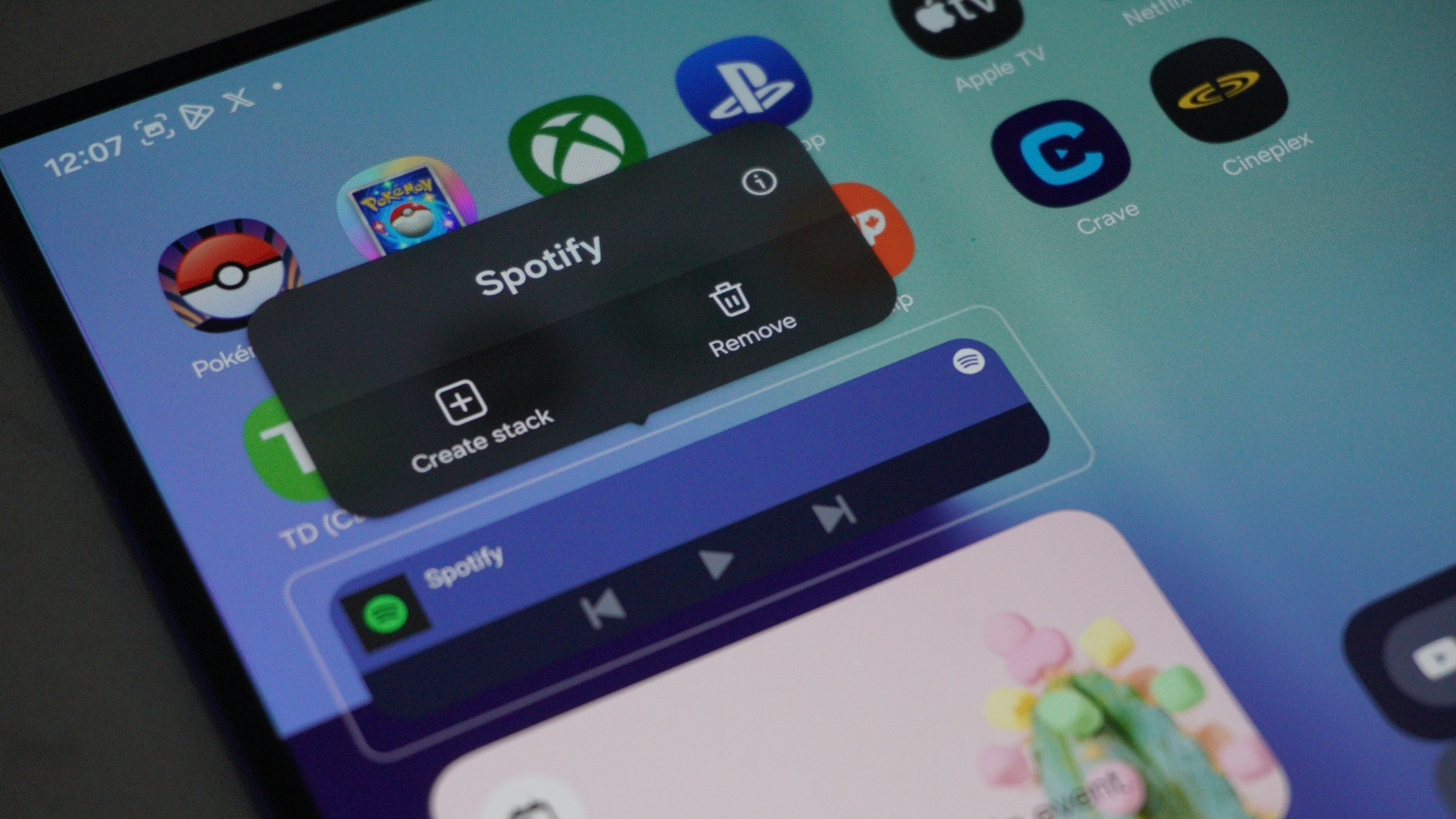
In many cases, you can edit the size of a widget to best fit your home screen. As so many widgets can change to different sizes, you can edit the size of your widget right from the home screen. It only takes a few seconds to easily tailor the look of the widget and how many controls it can show.
Note: Not all widgets have sizing options, so try adjusting them to see what options each offers.
Edit widgets on the home screen
To edit a widget on your home screen:
- Press and hold the widget.
- Drag one of the white corners of the widget.
- Release the white corner when you find the desired (and supported) size of the widget.
To move a widget on your home screen:
- Press and hold the widget.
- Drag the widget to your preferred location.
Edit widgets on the lock screen
Widgets on your lock screen can't be moved in the traditional sense. You won't be able to edit the size or move widgets once you select them for the lock screen. Instead, you can reorganize their placement within the widget area.
To edit the order of your lock screen widgets:
- Wake up your device.
- Long-press on your lock screen and select the widget window.
- Drag your widgets in the desired order.
- Press Done.
While you're not able to change the sizing of widgets on the lock screen, many app widgets offer various info layouts. So, you can find one that offers your desired level of information or controls.
Best apps for customizable widgets
Android is synonymous with customization. While the Android software and third-party developer support many widgets, plenty of apps help you to further customize your widget experience.
Here are a few suggestions. Note that some may have in-app purchases to unlock all uses or widget customizations.

KWGT Kustom Widget Maker
- Price: Free
- Devices: Google Play Store

WidgetClub
- Price: Free
- Devices: Google Play Store
WidgetClub supports over 4,500 aesthetic designs for your home screen on Android. Using the app, you can set your home and lock screen with new designs while complementing them with widgets, icons, and live wallpapers.
If you have an iOS device, you can check out our guide to adding and resizing widgets on iPhone.
Android widgets: Pros and cons
- Convenience
- Customization
- Glanceable content
- Clutters screen
- Beholden to developer support
The use of widgets offers many customization opportunities to match your style and needs. However, they can also drain your battery throughout the day and clutter up your screen. The design and use of certain widgets ultimately come from the developer, with some widgets being more useful than others.
Getting more comfortable with widgets, you can experiment with resizing to find the perfect fit for your home screen and lock screen, offering glanceable and useful information throughout the day.
Steve Vegvari
Staff Writer

Thousands of cell phone plans unpacked. All the facts. No surprises.

Related Articles



Find Better Phones and Plans
Hundreds of cell phone plans unpacked. All the facts. No surprises.