Like most people, I have a complicated relationship with my phone. I've caught myself on TikTok well past midnight, scrolled through Instagram without actually looking at anything, and opened a social media app out of pure habit.
According to research from the mobile and internet experts at WhistleOut, the average person spends 19 years of their life on their phone. That number's scary enough to make me actually do something about it. I tested 5 different screen time management apps myself to find out which ones keep you from doom-scrolling.
However, most apps to reduce screen time are too easy to cheat. I myself am guilty of ignoring my 30-minute timer on Instagram. The apps that actually work are the ones that make it inconvenient (or impossible) to use blocklisted apps. Read on to find the best app to break your digital habits and minimize your screen time for iPhone and Android.
Limit your scrolling with limited data
One way to cut down on scrolling is by limiting your data plan. Less data means you won't mindlessly browse social media since apps like TikTok and Instagram burn through data quickly. Start with a 10GB plan, which is enough for most Canadians to last all month (without excessive screen time usage).
Here are the best options for a limited data phone plan:
|
SaskTel

Talk and Text + Data 35
$15.00/mth
(after $20/mo. discount with BYO/Full Retail Price)
|
|
PC Mobile

$19 Unlimited Talk & Text
$19.00
Per 1 Month Top-up
+ $10 Upfront
|
|
Fizz

Unlimited Minutes & Text Messaging + 1GB Data
$19.00/mth
+ $15 Upfront
|
Best screen time apps at a glance
| App | Price | Platform | Best for |
|---|---|---|---|
| ScreenZen | Free (tip-supported) | iOS and Android | People who want restrictions without a full lockdown |
| Shift | $150 one-time purchase | iOS and Android | Anyone who needs a complete block |
| Freedom | Free (premium available for $39.99/year) | iOS, Android, and desktop | People who need to block distractions on desktop |
| One Sec | Free (premium starts at $5.99/month) | iOS and Android | Anyone who needs to break digital addiction |
| Dumbphone Homescreen | Free (in-app subscription starts at $9.99/year | Android only | Android users who want a minimalist home screen experience |
How we rated the best apps to manage your screen time
WhistleOut searches for Android and iPhone apps that are easy to use and affordable. We evaluate apps through hands-on testing and rate them on a five-star scale based on the following criteria:
- User experience: We look for apps that make your phone more useful, not more complicated. The apps we recommend are intuitive from the first session.
- Price & value: We favor apps that are free or reasonably priced, and we always flag when a paywall gets in the way of the features that matter.
- Efficacy: We test each app to see whether it actually delivers on its promises.
- Practicality: A fitness app needs to fit into real life. We reward apps that are worth opening every single day.
- Privacy & security: We evaluate app permissions and scour user reviews for reported security concerns.
1. ScreenZen: The free app that makes you stop and think
- Free (tip-supported)
- Available for iOS and Android
ScreenZen is a free screen time app for iPhone and Android that makes you stop and think about whether or not you need to scroll. This app doesn't remove distracting apps from your home screen or block the icons on your phone. Instead, every time you tap Instagram, TikTok, or whichever apps you've flagged, a delay screen appears a second after the app loads. ScreenZen makes you stop and think about whether you need to scroll or not. Those few seconds are enough to break the autopilot loop behind most mindless scrolling.
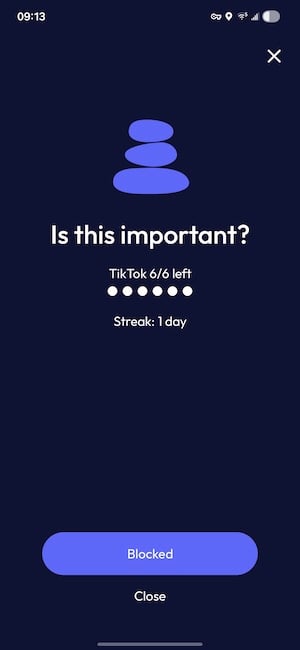
Image: Jessica Santero | WhistleOut
You can also set up strict restrictions on specific apps just in case you need a more secure deterrent to keep you from deleting your limits. Schedule full blackout windows, set daily time limits, or configure a gesture unlock system that requires a physical action to disable your limits early.
I found that completely turning off my social apps during my work schedule was the most useful. Plus, I set up a three-step gesture system I had to use to disable ScreenZen. It was easier to just put my phone down than go through the unlocking process. It makes cheating inconvenient enough that I successfully kept my social screentime to just 30 minutes per day.
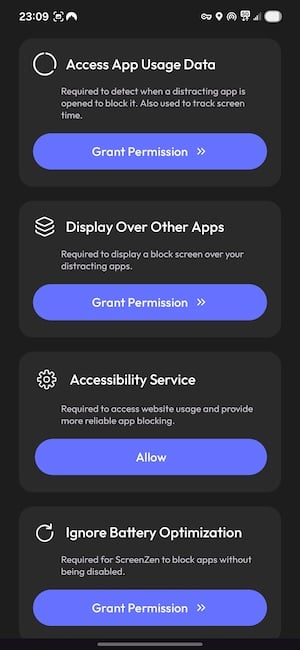
Image: Jessica Santero | WhistleOut
ScreenZen does require four different permissions in order to use it properly, including access to data usage, display over other apps, accessibility service, and ignoring power-saving, so ScreenZen will still work with a low battery.
ScreenZen is also completely free, which is rare for an app in this category that actually delivers on its promises. The developer runs it on tips, so if it works for you, it's a nice gesture to contribute.
What Reddit says about ScreenZen
Reddit loves the fact that ScreenZen breaks habits and does more than just discourage app use. One Redditor laid out exactly why ScreenZen is so effective in r/nosurf, explaining, "Instead of blocking apps outright, ScreenZen adds a pause before you open them... The pause breaks the autopilot loop. Most phone pickups are unconscious. You don't decide to open Instagram. Your thumb just does it. The 10-second pause forces a moment of conscious awareness. About 60% of the time, I close the screen and put my phone down."
Scrolling less? Downgrade to a cheaper low-data plan
If you're cutting back on social media, it's also a good time to see whether you're paying for more data than you actually need. Many carriers offer cheaper plans that still cover everything your phone requires, minus the mindless gigabytes.
Check out the most popular low-data plans below:
|
SaskTel
Talk and Text + Data 35
$15.00/mth
(after $20/mo. discount with BYO/Full Retail Price)
|
|
SaskTel
Promo Nationwide 50 BYOD
$40.00/mth
(after $20/mo. discount with BYO/Full Retail Price)
+ $50 Upfront
|
|
SaskTel
Basic Nationwide 15
$60.00/mth
(after $20/mo. discount with BYO/Full Retail Price)
|
2. Shift: The foolproof app blocker
- One-time purchase of $150
- Available for iOS and Android
Shift is a smartphone app-blocking tool you configure externally to completely remove access to distracting apps entirely during a scheduled session. Unlike most screen time apps you download locally on your phone, Shift is controlled on your desktop. There is no override button to find and no settings menu to sneak into, adding an extra step between you and any temptation to cheat.
It is the only screen time app I've tested with no workaround.
Once your shift starts, the blocked apps are gone until the timer ends. On iPhone, it physically removes them from your home screen. On Android, it locks them out at the system level. There is no ignore or PIN override, and no emergency bypass you can tap from your couch.
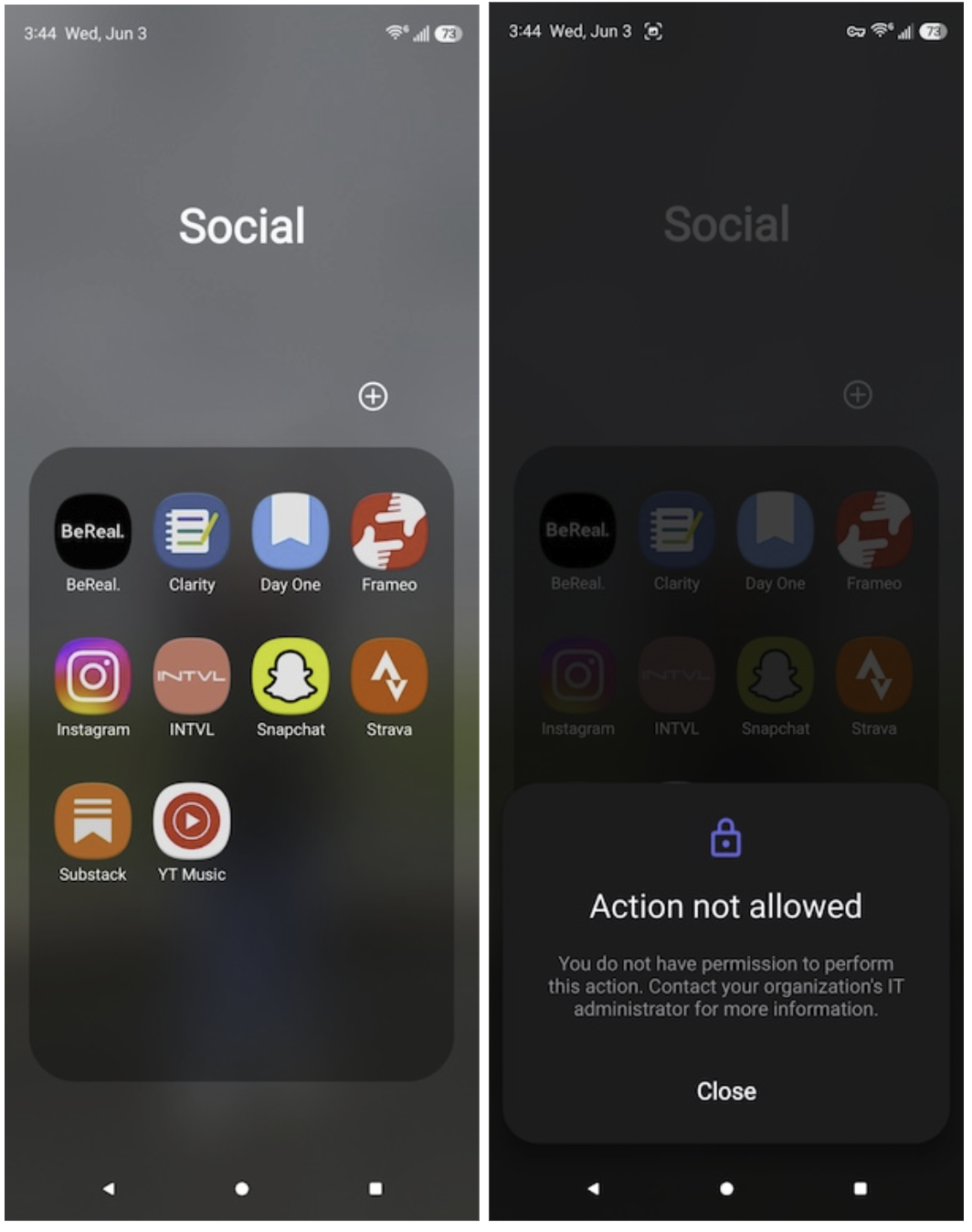
Image: Scott Houghton | WhistleOut
Shift requires a lot of setup in order to set yourself up for success. It requires unlocking developer options, but WhistleOut has a guide that walks you through it. The process is a little long, but you only do it once. After that, scheduling your shifts is straightforward, and everything is managed through a desktop interface that adds another layer of difficulty if you're tempted to cheat.
Our colleague, Scott Houghton, tested Shift on his Galaxy Z Fold5 and called it the best screen time tool he has ever used. He reports reducing his screen time by around 90% since installing it, something he describes as having eluded him for years despite trying multiple alternatives. He raved about Shift, saying, "I have tried so many of these types of apps but have never had any luck because of how easy it is to bypass them. This app doesn't allow you to bypass it, so in my opinion, it works the best."
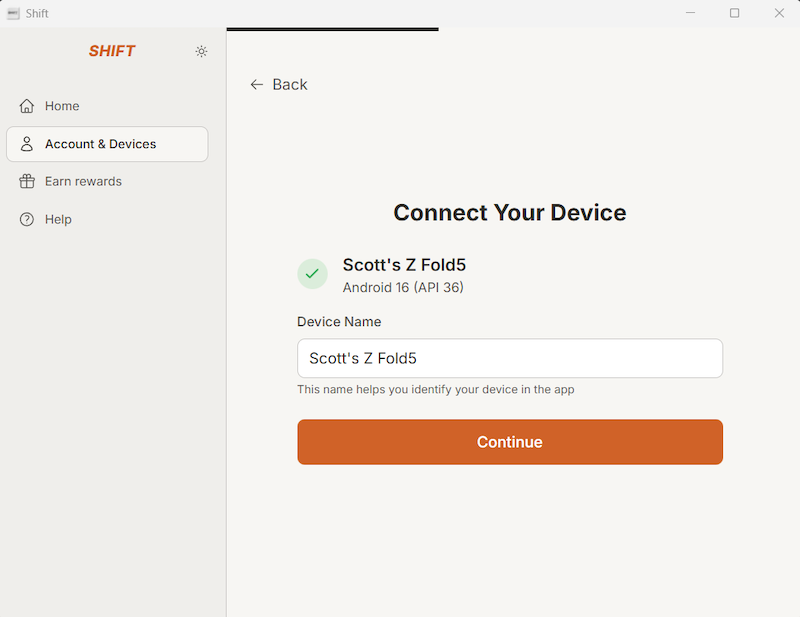
Image: Scott Houghton | WhistleOut
The biggest drawback of Shift is the price. $150 is a lot of money for an app, even if it does work. But if you've already burned through free options that kept letting you off the hook, the investment might be the accountability you need.
It's great for kids and teens too since Shift also blocks explicit content and flags questionable images using built-in AI moderation. It's an excellent, no-nonsense option for people who want a serious digital detox that goes beyond just social media.
What Reddit says about Shift
Shift is a very strict screen-time management system that also includes content filters and app limits. One Redditor in r/productivity only had positive reviews of just how helpful Shift really is at ending doom-scrolling, saying, "Shift has some built-in AI which blocks questionable images on otherwise safe sites. It will ruthlessly restrict your access to apps that their team considers unedifying or unproductive. So far, it seems to be working VERY well."
Your data plan matters when you're cutting screen time
You've already invested in cutting your screen time. Make sure your phone plan isn't working against you.
Compare the most popular phone plans below:
|
Rogers

Popular Plan
$85.00/mth
(after Auto-Pay discount)
|
|
Rogers
Popular Plan
$85.00/mth
(after Auto-Pay discount)
|
|
Freedom Mobile

$50 5G+ Unlimited 175GB CA-US plan
$50.00/mth
(after Digital Discount)
|
3. Freedom: The screen time app that also works on your laptop

- Free. Premium is available for $39.99/year
- Available for iOS, Android, and desktop
Freedom is a cross-device app blocker that runs on your phone and computer simultaneously. Build a custom blocklist of apps and websites, set a schedule for when those blocks are active, and Freedom enforces them across every device connected to your account at the same time. It's the only screen-time management app that follows you from your phone to your browser (without requiring a separate tool for each).
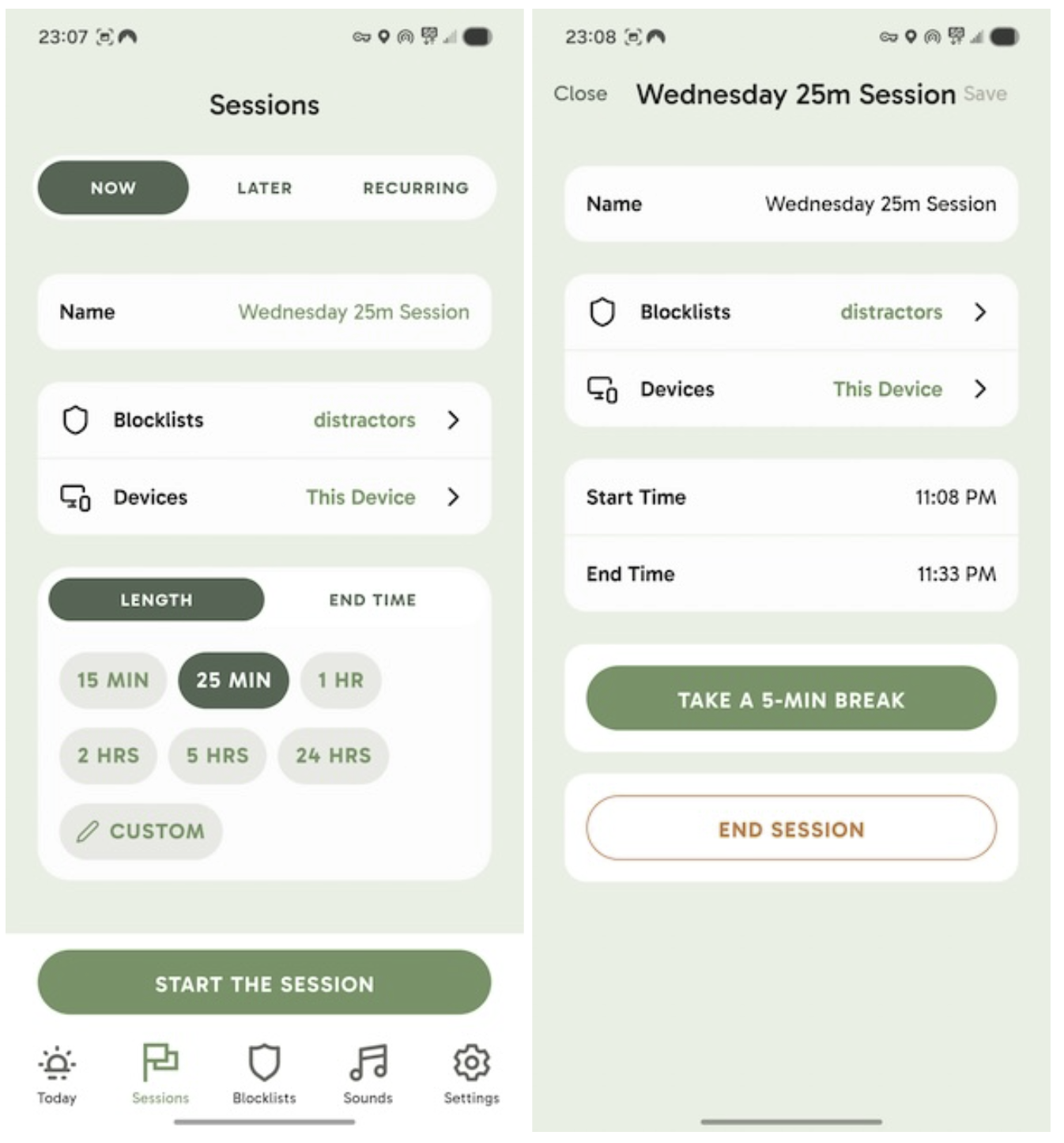
Image: Jessica Santero | WhistleOut
Freedom knows you're going to try to get into your blocked apps. That's why it gives you a singular five-minute break each day. It's just enough if you're itching to scroll your feed, but not enough to encourage you to delete the app entirely. Freedom lets you pause your session temporarily without blowing up the whole schedule.
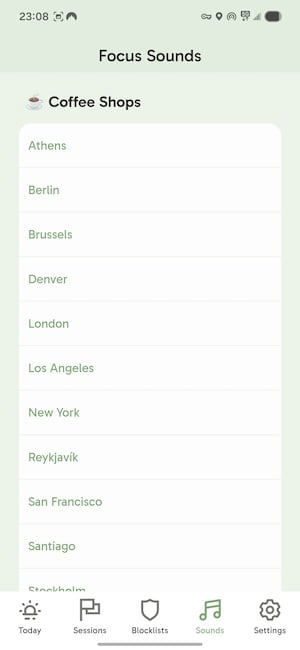
Image: Jessica Santero | WhistleOut
Freedom's free tier includes decent blocking, and the desktop blocker is one of the best features for focused work sessions. Plus, the cross-device sync keeps you from simply jumping across platforms. Freedom isn't the most aggressive option to limit your screen time, but it's the most realistic. It follows your distraction habits wherever they go and helps you try for healthier habits.
What Reddit says about Freedom
Screen-time management apps are more effective the longer you use them, and Freedom is no exception. In fact, one Redditor shared a detailed three-week journey with Freedom, explaining, "The desktop blocker actually works well. You can schedule block sessions, and it genuinely makes it annoying to access blocked sites during those times. The 'locked mode' (where you can't disable the block early) is useful if you have zero self-control. It also syncs across devices, which most competitors don't do..."
You don't need unlimited, so don't pay for it
Did you know most Canadians overpay for unlimited data but don't use more than 10GB each month? Stop spending on data you won't use, and opt for a limited data plan.
Check out the most popular options available today:
|
Rogers
Popular Plan
$85.00/mth
(after Auto-Pay discount)
|
|
Rogers
Popular Plan
$85.00/mth
(after Auto-Pay discount)
|
|
Rogers
Essentials Plan
$70.00/mth
(after Auto-Pay discount)
|
4. One Sec: The pause button for impulsive app openers
- Free. Subscriptions from $5.99/month
- Available for iOS and Android
One Sec is similar to ScreenZen in that it interrupts you with a pause instead of opening a distracting app, but it prompts you to breathe. One Sec focuses more on intentional decision-making and shows you how many times you try to open the blocked app. It even forces you to tap a button that says you don't want to open the app. Essentially, One Sec rewires your automatic app responses. I catch myself several times a day tapping Instagram before my brain even registers what I'm doing. One Sec gives you a second to ask whether you actually want to open the app or whether you're just following muscle memory, and then makes you think about it.
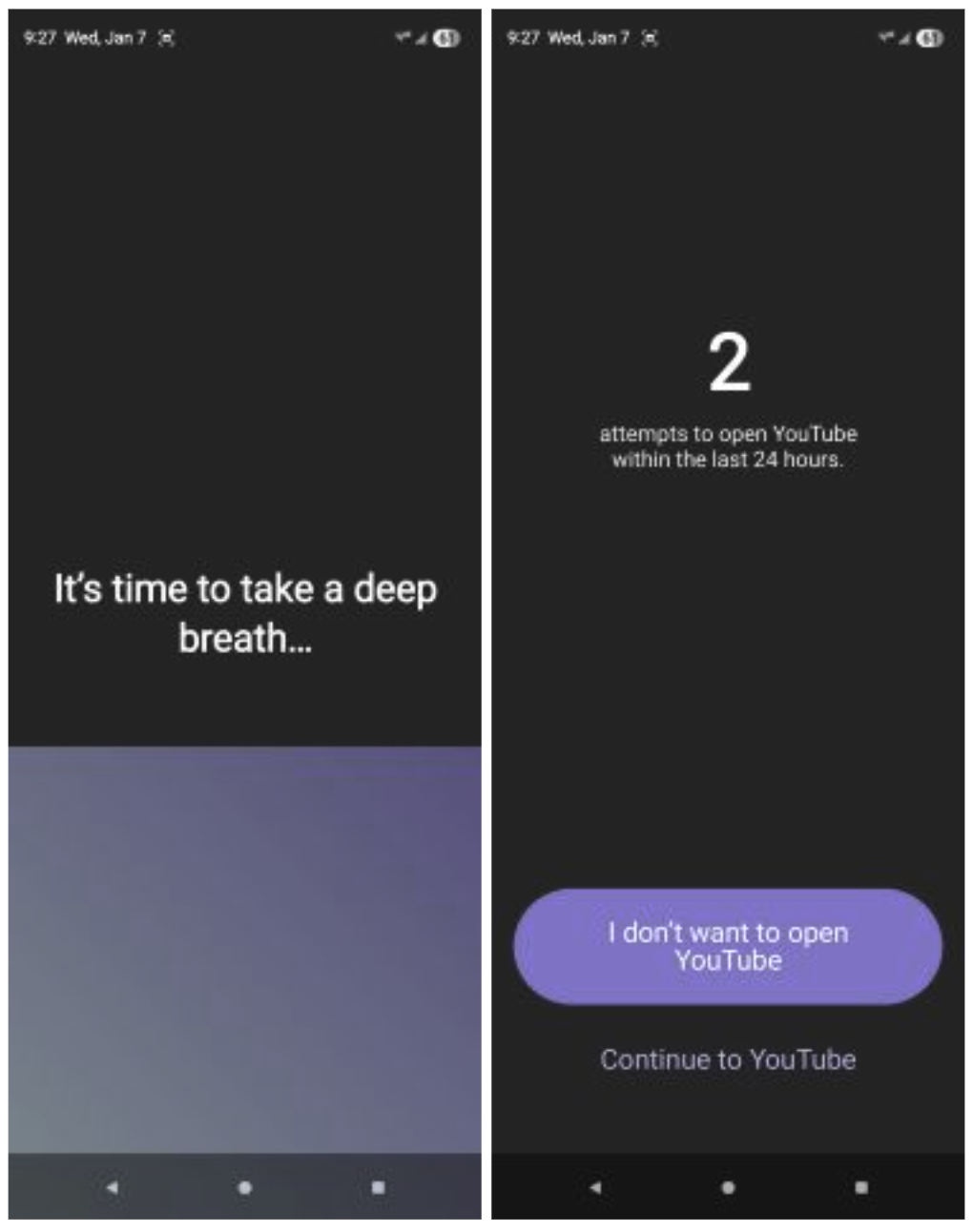
Image: Scott Houghton | WhistleOut
When you tap one of your listed distractors, One Sec takes over the screen and guides you through a deep breath (which you can customize the length of). It's a good option for people who find full blockers too aggressive but want something stronger than sheer willpower.
After testing One Sec for a full month, Whistleout writer Scott Houghton noticed, "Most of the time, seeing that I've already tried to open YouTube 47 times that day is enough to make me realize I don't actually need to see what's happening there. And I found myself regularly closing the app and going back to what I was doing."
I paid for the $20 annual subscription after one month of using One Sec.
That said, One Sec is most effective in the early weeks of use. Several long-term users report that the pause loses its psychological power once your brain gets used to it, and you start automatically tapping through it without thinking. If you find that happening, the apps higher up on this list with harder lockouts may be a better fit.
What Reddit says about One Sec
Screen-time apps only work if you're willing to change your digital habits. One Redditor in particular saw that as time went on, they slowly returned to using social media tenfold, explaining, "Personally, I chose One-sec, and I bought the lifetime plan. At first, it worked pretty well, but over time, I felt like it became less and less effective. It stopped blocking me as much, and I found myself spending more and more time on social media again. So in the end, their effectiveness and usefulness became very limited."
Time to start calling and stop messaging
One way to cut down on the amount of screen time in your day is by opting to call instead of sending messages or video calling your friends and family. Downgrade to a low-data plan with loads of minutes for better social connections and less screen dependency.
Here are the best plans with unlimited minutes for better conversations:
|
Bell

Monthly $20 Prepaid Voice
$20.00
Per 1 Month Top-up
+ $10 Upfront
|
|
Bell
Monthly $20 Prepaid Voice
$20.00
Per 1 Month Top-up
+ $10 Upfront
|
|
Bell
Monthly $24 Prepaid Voice and 4GB Data
$24.00
Per 1 Month Top-up
+ $10 Upfront
|
5. Dumbphone Homescreen: A minimalist Android home screen for people who want less clutter

- Free. Subscriptions from $9.99/year
- Available for Android only
Rather than blocking specific apps or adding obstacles before you open them, Dumbphone Homescreen changes what your phone looks like when you pick it up. The launcher strips your home screen down to a minimal, text-based interface free of any visual distractions. Colourful icons are muted, and notification badges are eliminated. Dumbphone Homescreen is ideal for someone who doesn't want to block themselves from apps entirely, but wants to stop reaching for their phone reflexively out of boredom. Removing the visual stimulation removes the pull.
I found it did a good job discouraging me from accessing apps that waste my time without completely locking me out of my phone.
Tech expert Max McCaskill tested Dumbphone Homescreen and found it extremely useful, especially since dumbphones are currently trending. He explained in his review that "People are ready to trade in their smartphones for devices that will prevent them from doom-scrolling or frying their attention span. That said, nobody wants to pay for a brand-new device, and many people still want access to the useful features that smartphones can provide, like GPS or health monitoring."
It's the best option for Android users, plus it's free. Max was so pleased that he recommended sticking with the free version since the point of the app was to reduce your usage, and the basic Dumbphone Homescreen does just that.
What Reddit says about Dumbphone Homescreen
One Redditor had mixed feelings about Dumbphone Homescreen in r/dumbphones, commenting, "I've tried other launchers and tools to try and make the device better, but overall none of them really worked... I was originally trying to go for a minimalistic greyscale look since my hope was not to use the device too much. I can totally see how it kinda makes the design 'flat' and depressing... The main reason for this is mainly due to dumb phones being dumb."
Ready to go further? A real dumbphone might be the answer
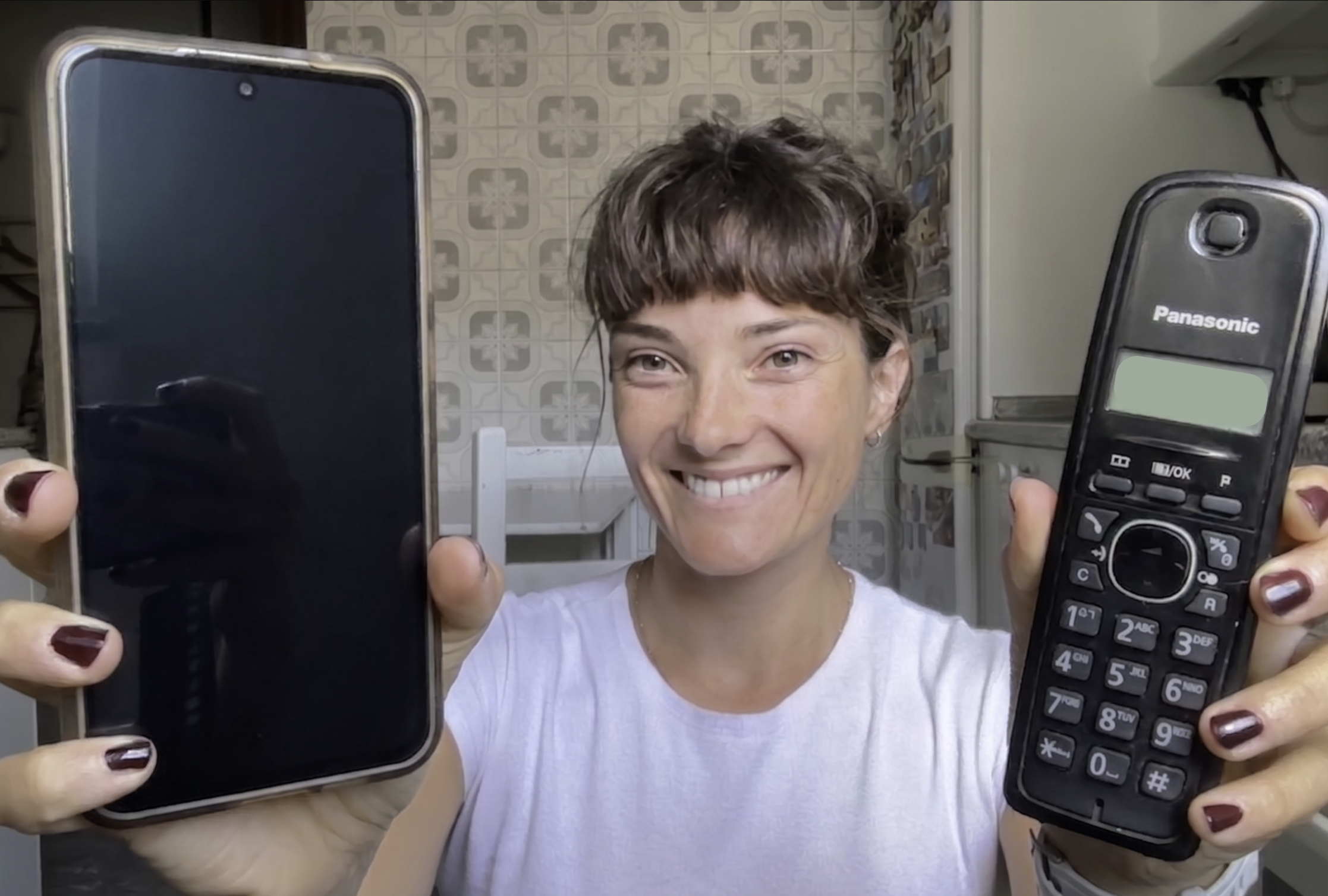
If a minimalist launcher isn't enough, the next step might be a real dumbphone. WhistleOut has rounded up the best dumbphones available right now, from basic call-and-text models to stripped-down Android options that still keep you connected without the doom-scroll temptation.
How to use your phone's screen-time limits
Before you pay for anything, check out your phone's pre-installed screen-time limits. Both iPhone and Android offer built-in tools that are very useful in limiting your usage.
On my Samsung S24 FE, I use Digital Wellbeing's app timers to cap my daily TikTok and YouTube use. When I hit my limit, the app icon grays out, a small heart appears below it, and the app stops opening. To get more time, I have to physically go into the settings and extend my limit manually—which, of course, makes me feel bad so I don't do it.
That one extra step is enough to stop the habit. I almost never bother to override it, and my screen time has dropped significantly as a result. You can also see a detailed breakdown of your daily and weekly usage, which apps are eating the most time, how many times you've unlocked your phone, and even what time of day you're most active. My unlock count on one day was 55. That was the day I set my first app timer.
The downside of both systems is that they're relatively easy to override if you're motivated enough. There's no hard stop. But for people who just need a nudge rather than a full lockdown, the native tools are a perfect starting point.
How to set up screen time limits on iPhone
- Open Settings.
- Tap Screen Time and then App & Website Activity.
- Tap Turn On Screen Time and select This is My iPhone (or set it up for a child's device).
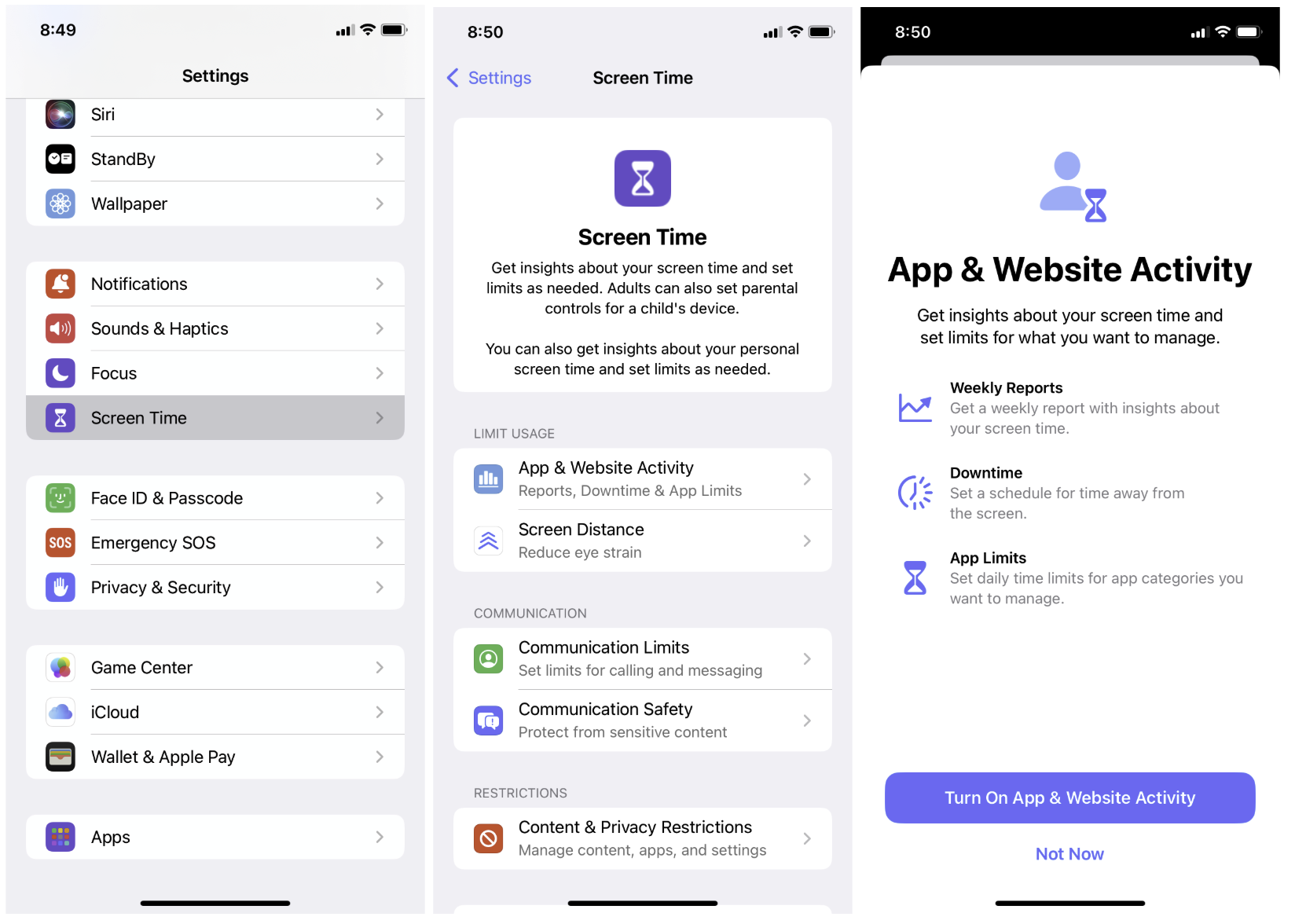
Image: Jessica Santero | WhistleOut
- After tapping App Limits, choose the apps you want to limit.
- Set your daily time allowance and tap Add.
- To make limits harder to override, go back to Screen Time and tap Use Screen Time Passcode to set a PIN.
- Under Downtime, you can also schedule windows (like overnight) where only certain apps are available.
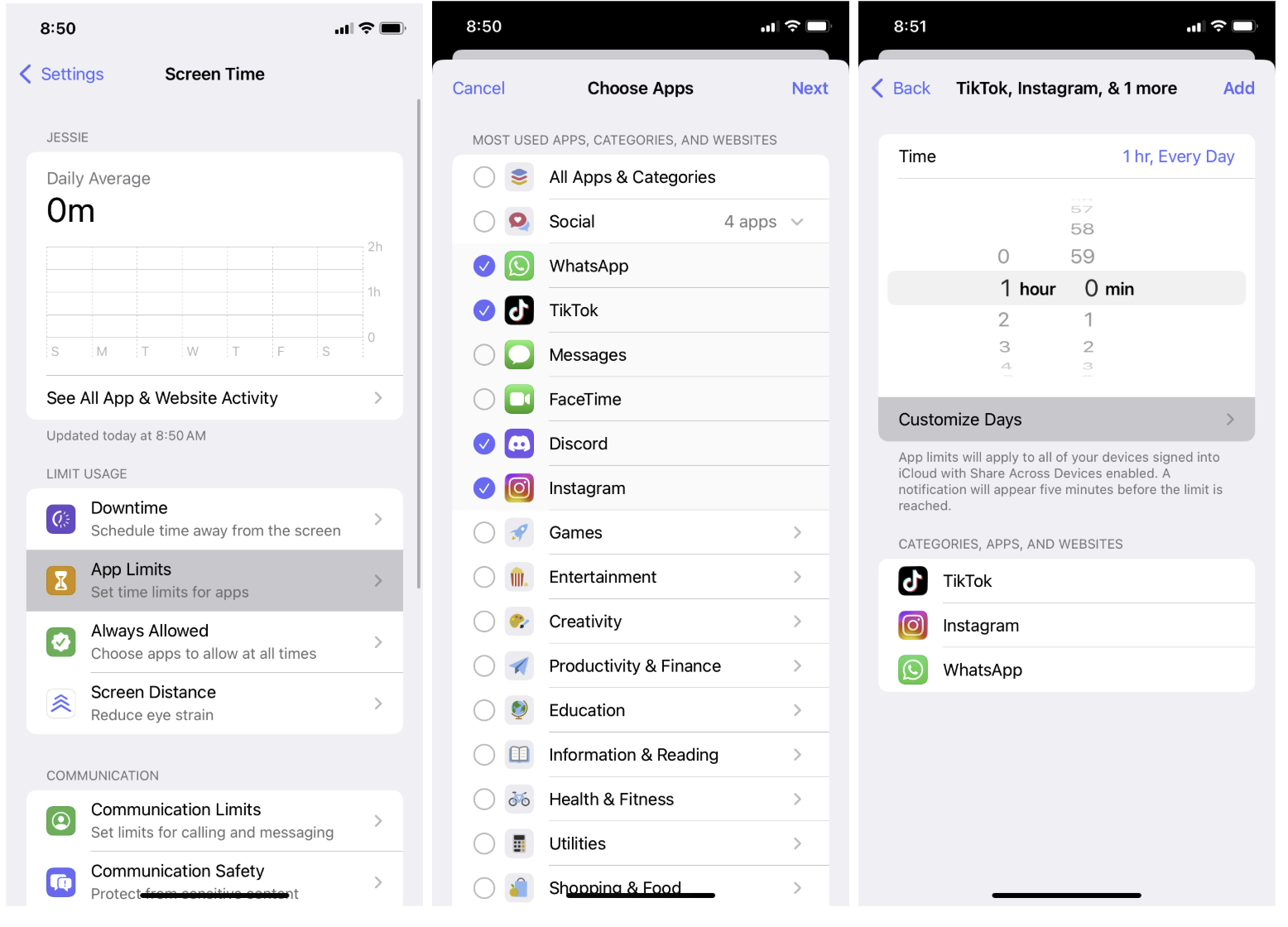
Image: Jessica Santero | WhistleOut
For a full step-by-step walkthrough with screenshots, check out WhistleOut's guide to setting screen limits on iPhone. You can also find more hidden features worth turning on in our guide to iPhone features you didn't know about.
How to set up screen time limits on Android
- Open Settings.
- Tap Digital Wellbeing and parental controls.
- Add apps to limit.
- Tap the three-dot menu in the top right corner and select Manage notifications to get usage reminders.
- Set a PIN for extra safety.
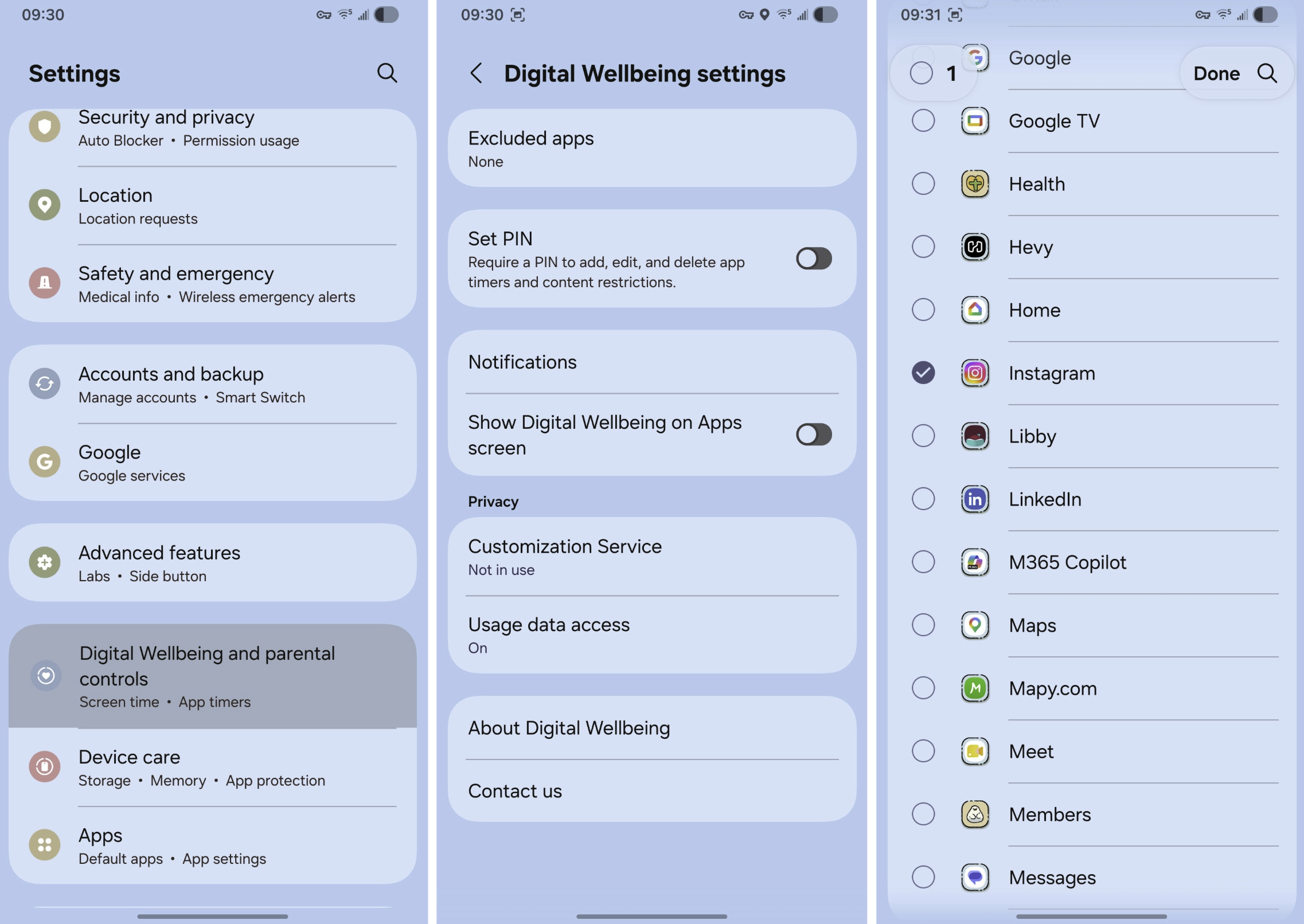
Image: Jessica Santero | WhistleOut
 How I tested the best screen time apps
I spent several weeks downloading and stress-testing every app on this list on both an iPhone and a Samsung Galaxy, trying to figure out what actually stops the scroll. The features and scenarios I tested included the following:
- Setting time limits on social media apps and trying every possible workaround
- Blocking specific apps during defined work hours
- Testing how easy it was to bypass each app's restrictions
- Evaluating setup complexity and daily usability
- Checking whether each app required a subscription or a one-time payment
- Reviewing Reddit communities and user reports for long-term effectiveness
Apps that were easy to dismiss, skip, or delete weren't included in my final recommendations. The ones below all passed the most important test: making my phone harder to abuse.
Screen-time management apps: FAQ
What is doom-scrolling and why is it hard to stop?
Doom-scrolling is the habit of endlessly scrolling through social media or news feeds. It's hard to stop because most social apps are designed to trigger small hits of dopamine that keep you coming back automatically.
What is the difference between a screen time app and a parental control app?
Screen time apps are designed for self-regulation (since the person using the app also controls it). Parental control apps are managed by a parent or guardian and restrict what another person (usually a child) can access, often with a separate admin PIN or account the child can't access.
Is there a free screen time app that actually works?
ScreenZen is the best free option if you want a third-party app, since it adds extra blocks before your listed apps open without charging a subscription. The built-in tools on iPhone and Android are also free and effective.
Can screen time apps block specific apps like Instagram or TikTok?
Yes, Shift, ScreenZen, Freedom, and the built-in iPhone and Android tools all let you target specific apps for blocking or time limits.
Jessica Santero
Staff Writer

Find a better phone plan
Thousands of cell phone plans unpacked. All the facts. No surprises.

Related Articles


Find Better Phones and Plans
Hundreds of cell phone plans unpacked. All the facts. No surprises.