Read Receipts are iOS notifications that indicate whether a contact has viewed a text within Apple's Messages app. Since their release in 2011, they’ve inspired both praise and condemnation: Some see them as a helpful form of transparency while others view them as a terrifying invasion of privacy.
Whether you love them or hate them, it’s important to know how to turn them off and on so you can make your own decision. Changing your Read Receipts on an iPhone is actually quite easy with just a simple toggle in your settings for Messages.
Read on below for step-by-step instructions, including how to enable or disable Read Receipts for individual contacts.
As Read Receipts can be useful to some users but invasive to others, it's a handy tool to understand. Check out our video on how to tailor the feature to your preferences.
Watch our "How to Turn On/Off iMessage Read Receipts | + More iMessage Customizations" video
Subscribe to our YouTube channel for more videos like this one! Learn about switching providers, scoring the best unlimited data deals, and more.
How to turn iPhone Read Receipts on or off
Turning Read Receipts on or off will prevent your contacts from seeing whether you’ve viewed their messages. Here’s how to turn your Read Receipts on or off on your iPhone:
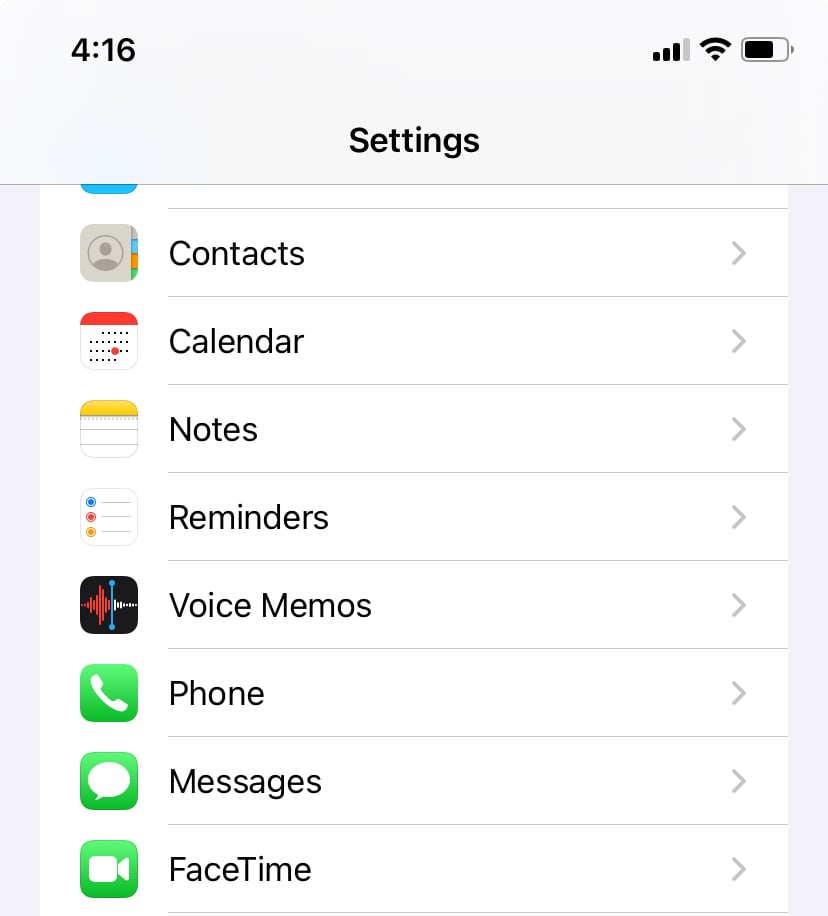
- Open Settings.
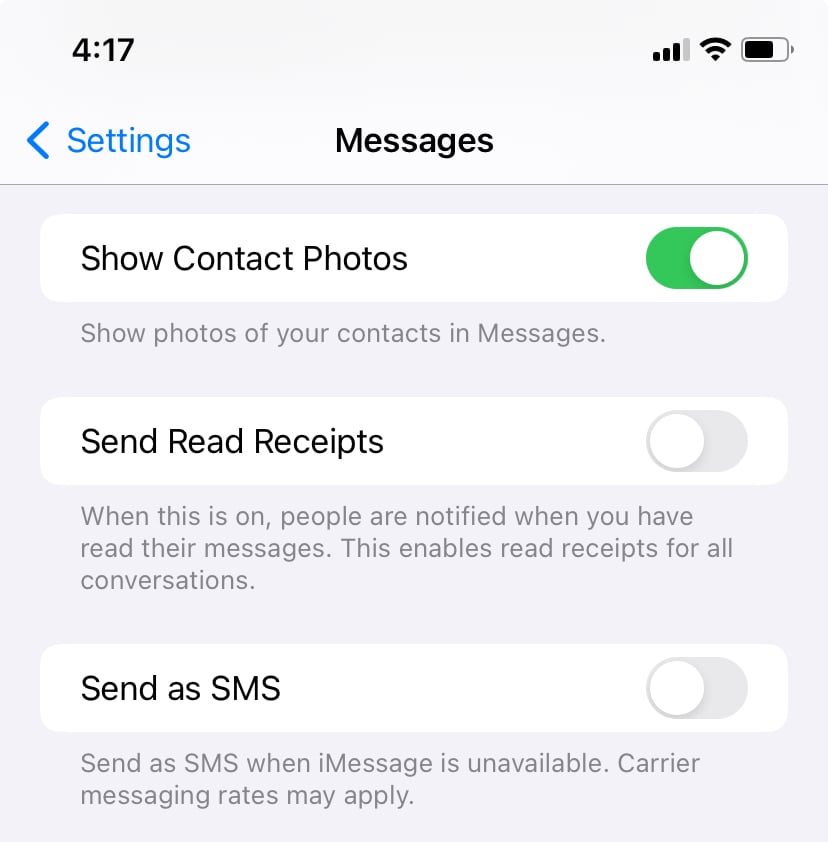
- Tap Messages.
- Scroll down to Send Read Receipts.
- Toggle the slide to "on" or “off” (it will appear gray) to disable Read Receipts.
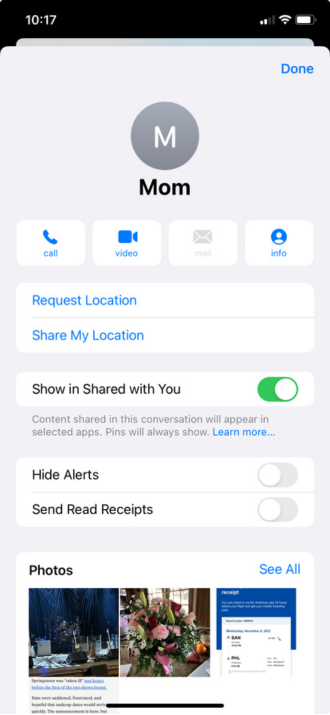
How to turn Read Receipts on or off for a single contact
If you need Read Receipts on/off for a particular person (or several of them), Apple also allows you to toggle the feature for specific contacts while leaving it on for everyone else you text. Here’s how:
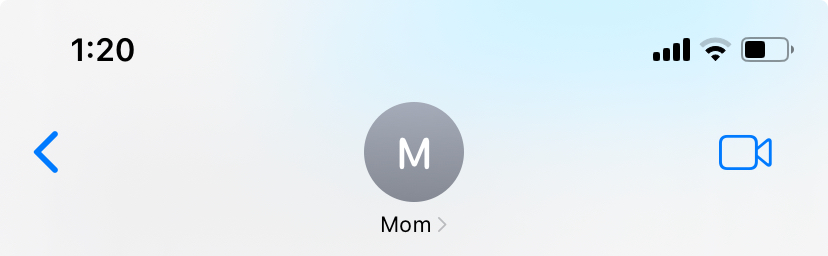
Open your conversation with the contact whom you want to no longer want to see your Read Receipts.
- Tap the circular icon with the contact’s initials.
- Toggle Send Read Receipts to "on" or “off” (it will appear gray).
iPhone Read Receipts: FAQ
How can you tell if someone turned off their read receipts on iMessage?
If someone has turned off read receipts in iMessage, you won’t see a Read timestamp beneath your sent message. Instead, the message will typically only show Delivered once it reaches their device.
Can you read a text message without it showing read?
Yes. If read receipts are turned off in iMessage, the sender won’t know when you opened the message. In some cases, you can also preview messages from notifications or the lock screen without fully opening the conversation.
Can you tell if someone read your text without read receipts?
Not definitively. Without read receipts enabled, there’s no built-in way in iMessage to confirm someone opened your message. You may only see Delivered, which means the message reached their device, not that they read it.
How do I turn off read receipts for individual chats?
On Apple devices, you can disable read receipts for specific conversations in iMessage:
- Open the Messages app.
- Tap the conversation.
- Tap the contact name at the top.
- Select Info.
- Toggle Send Read Receipts off.
Kevin Kearney
Deputy Editor

Thousands of cell phone plans unpacked. All the facts. No surprises.

Related Articles



Find Better Phones and Plans
Hundreds of cell phone plans unpacked. All the facts. No surprises.