Earlier this year, Samsung released its new high-end Galaxy S26 Ultra. While the device itself is quite iterative, maintaining much of the design and specs of its predecessor, Samsung did introduce a unique new feature: the Privacy Display.
Privacy Display is a new security feature that uses narrow pixels and light dispersion to obscure what's on your device's screen when viewed from an angle, so much so that the display almost looks as if it’s off completely. Being able to control the viewing angle of your device may sound like a gimmick. However, the more I've used it, the more I've found practical real-world use cases that have me falling in love with the feature.
Let's explore the most practical uses of the Galaxy S26 Ultra's Privacy Display and how it can fit into your lifestyle.
What is Privacy Display, and how does it work?
Privacy Display is the Galaxy S26 Ultra's brand-new display feature that allows users to protect sensitive information on-screen. By activating Privacy Display, Galaxy S26 Ultra dims the screen when viewed from an angle, obscuring what's on the display to those around you.
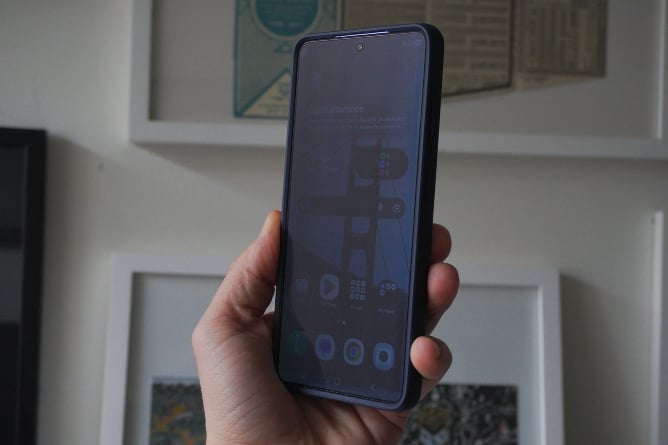
Image: Steve Vegvari | WhistleOut
With Galaxy S26 Ultra's Privacy Display, you can keep your screen hidden from people around who may peek over your shoulder when out in public. This can be a great asset for those who store sensitive information on their devices or need to protect passwords and PINs.
Unlike traditional privacy solutions, which rely on physical screen protectors that dull brightness and clarity, Samsung’s approach is built directly into the display panel. The Galaxy S26 Ultra features a 6.9-inch Dynamic AMOLED 2X display with a QHD+ resolution (3120 x 1440), adaptive 120Hz refresh rate, and peak brightness reaching around 2,600 nits. On top of all this is a built-in Privacy Display feature that controls the screen at the pixel level.
When Privacy Display is active, your Galaxy S26 Ultra's screen looks a tad saturated when viewed head-on. The trade-off is that, from an angle, the display darkens, making it very difficult for onlookers to see what's on your screen.
Privacy Display is all built on Samsung's Flex Magic Pixel technology. At a technical level, the display uses two types of pixels: wide and narrow. When Privacy Display is off, both are active, delivering the wide viewing angles you expect from a premium AMOLED panel. Turn Privacy Display on via your Settings menu, and the display disables wide-angle light emission, relying primarily on narrow pixels to restrict visibility. With this feature readily available at your fingertips, you can control when the feature is active or disabled fairly quickly.
Customizing Galaxy S26 Ultra's Privacy Display
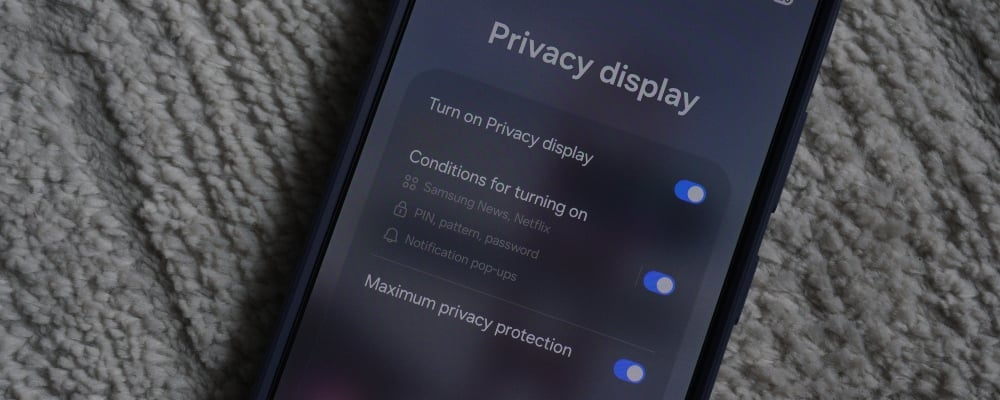
What I've really begun to love and appreciate about Privacy Display is that it's a modular feature, offering full customization and control of what leverages the technology. Privacy Display isn't only a catchall feature you can turn on. You can actually use some built-in conditions to configure when Privacy Display is active on a per-app basis.
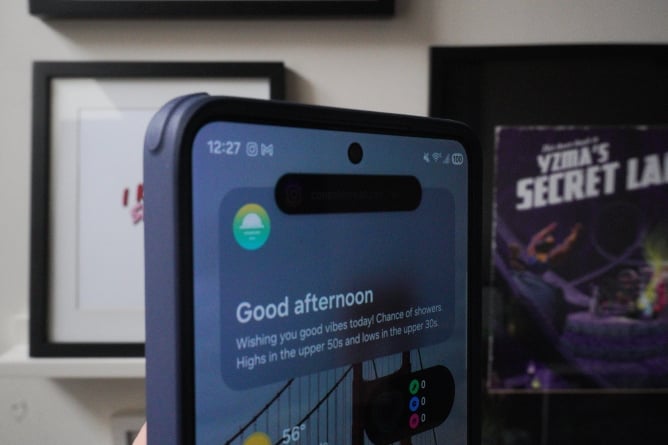
Image: Steve Vegvari | WhistleOut
Within the Privacy Display settings, you can go through and toggle on any apps you want Privacy Display active for. For instance, rather than having Privacy Display turned on all the time, I have the feature active only when I open the TD Canada app to access my banking information. Additionally, I've found it useful to enable the Gallery app so nosy people can't catch a glimpse of my photo library or Google Docs.
On top of this, Samsung allows Privacy Display to be active only in the PIN and Password fields or in the notification pop-up window. When typing in a password, Privacy Display kicks on and then off again once you're done. The same applies to notifications. The Privacy Display feature kicks in only for the notification banner while the rest of the display remains unchanged. You don't have to sacrifice the crisp and gorgeous colours of the OLED display to keep sensitive information private.
Samsung also includes a Maximum Privacy mode within the controls. If enabled, it obscures the screen at even more extreme angles, making it much harder to see if you're not the user. However, you do sacrifice some brightness and clarity when looking head-on.
How to turn on Galaxy S26 Ultra's Privacy Display
There are two primary ways to control Privacy Display settings. The first is within the core Settings of your Galaxy S26 Ultra.
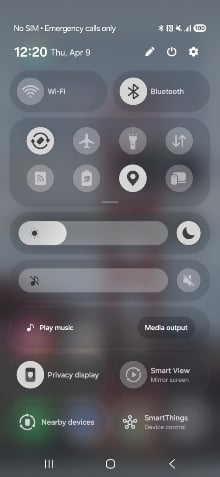
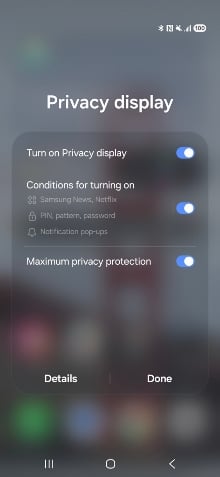
Image: Steve Vegvari | WhistleOut
1. Tap Settings.
2. Select Display.
3. Tap the Privacy Display option to toggle the feature on/off.
Alternatively, you can pull down the Quick panel on your device to access Privacy Display's controls more easily.
1. Within the Quick panel, select Privacy Display.
2. Turn Privacy Display on/off.
3. Toggle Maximum Privacy protection (optional).
Within this menu, you can also configure the conditions for Privacy Display across apps, PIN, passwords, and notification pop-ups.
How I use Galaxy S26 Ultra's Privacy Display
Over the past month or so, I've begun adopting Galaxy S26 Ultra's Privacy Display more and more into my life. I've found it quite useful for those already investing in Samsung's latest high-end device.
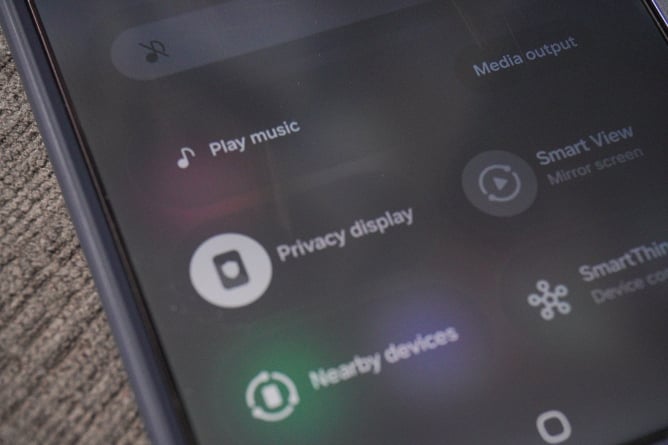
Image: Steve Vegvari | WhistleOut
One of the most common (and, I think, widely recommended) uses for Privacy Display is keeping banking information hidden. As previously mentioned, banking information is among the most sensitive information to keep on your phone. I like keeping this information out of others' view when possible, so I toggle on Privacy Display in my TD Canada app. However, this applies to any banking app.
I travel quite frequently, which means I'm spending time at busy airports and hours on flights. There are many times when I have to respond to emails or read through documents that have embargoed information at the time. I've always prioritized keeping sensitive information in documents out of sight of onlookers, so activating Privacy Display across Gmail, Google Docs, etc. has been a great benefit.
The Galaxy S26 Ultra's Privacy Display is also great for media consumption on the go. Social media or streaming content can be a personal endeavour at times. Setting apps like Netflix, YouTube, X (formerly Twitter), or Instagram to use Privacy Display can give you all the discretion you need during subway or train rides.
Find the best deals on a Galaxy S26 Ultra
Samsung's Galaxy S26 Ultra is available now, with many Canadian carriers like Rogers, Bell and Telus offering the device with an unlimited data plan. If you're interested in the Galaxy S26 Ultra, check out some of the hottest deals below.
Galaxy S26 Ultra 5G 256GB
- 6.9 inch display
- Rear Cameras: 200MP, 50MP, 50MP, 10MP
- Front Camera: 12MP
Galaxy S26 Ultra 5G 512GB
- 6.9 inch display
- Rear Cameras: 200MP, 50MP, 50MP, 10MP
- Front Camera: 12MP
Galaxy S26 Ultra 5G 1TB
- 6.9 inch display
- Rear Cameras: 200MP, 50MP, 50MP, 10MP
- Front Camera: 12MP

Samsung Galaxy S26 Ultra Privacy Display: FAQs
Is Privacy Display different from a regular privacy screen protector?
No, the Privacy Display feature is unique to smartphones. Galaxy S26 Ultra's Privacy Display operates at the pixel level, narrowing viewing angles. It's integrated into both the hardware and software, meaning users can control how the feature is used.
Can Privacy Display be used on Galaxy S26 and Galaxy S26+?
No, the Privacy Display is exclusive to the Galaxy S26 Ultra. The feature is built into the device's hardware. So, it's not a separate accessory, nor can it be introduced via a software update.
Can Privacy Display hide my passwords?
Yes, the Privacy Display feature can hide passwords and PINs. By default, Privacy Display shrouds the entire screen, hiding what's on it from those around you. However, you can set Privacy Display to only obscure PIN and password fields.
Does using Privacy Display save battery?
Using Privacy Display doesn't noticeably save battery life. Despite turning off certain pixels, the amount of battery saved won't be notable by the end of the day.
Steve Vegvari
Staff Writer

Thousands of cell phone plans unpacked. All the facts. No surprises.
Related Articles



Find Better Phones and Plans
Hundreds of cell phone plans unpacked. All the facts. No surprises.